How to setup IPTV on you device
Get intructions for diferent devices
Setting up viewing through the OTTPlayer application
Official application website: ottplayer.tv
Register on the official OTT Player website.
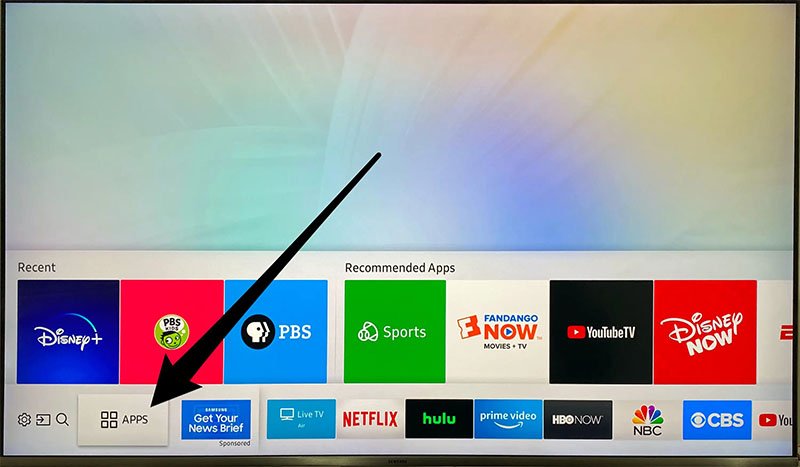
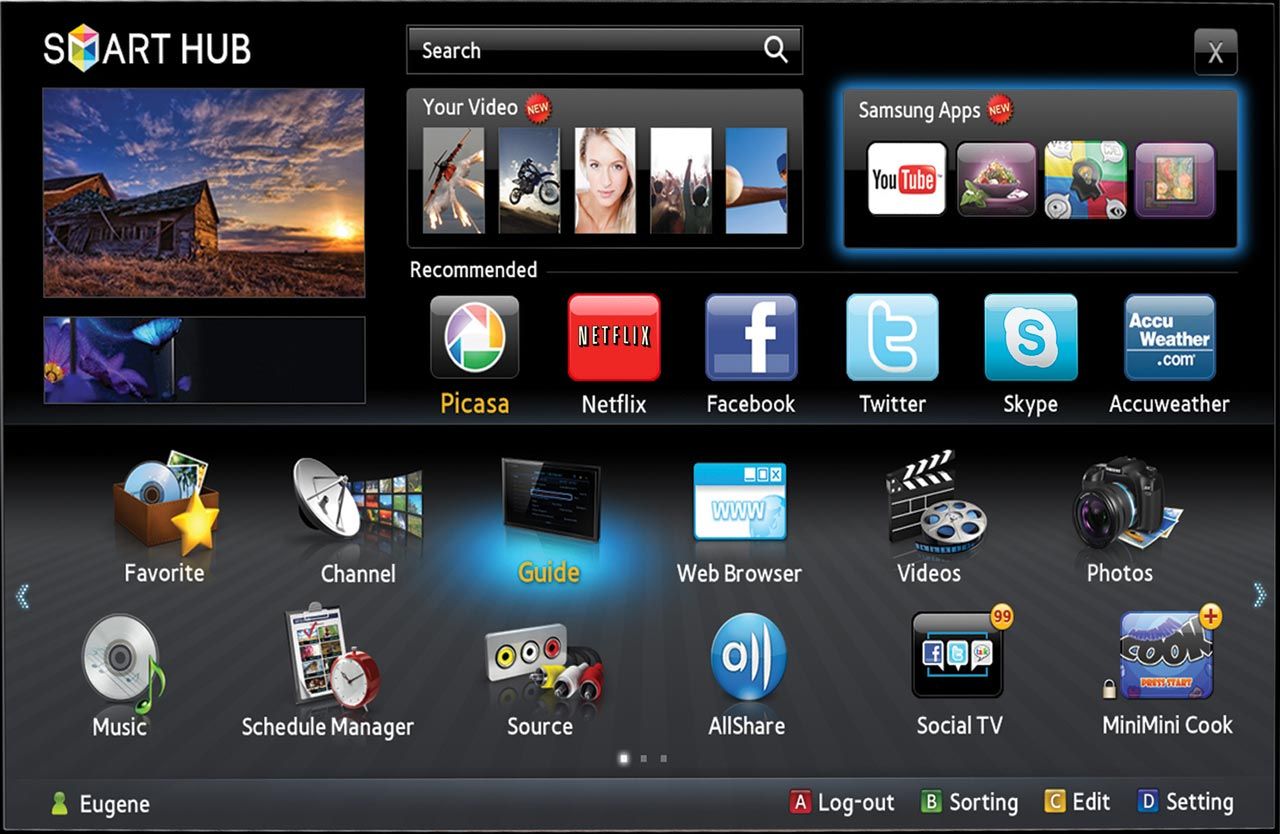
Install the OTTPlayer application with a purple icon on your TV via the Samsung Apps application manager
(or Samsung Smart Hub).

or
Launch the application and enter the registration details from your ottplayer.tv account
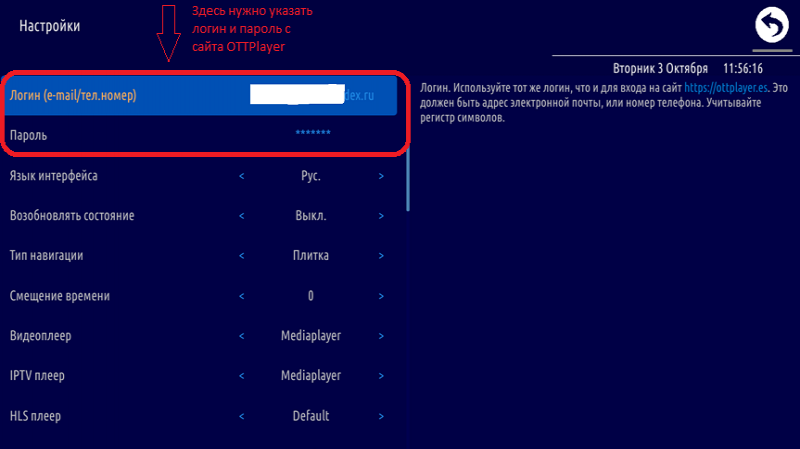
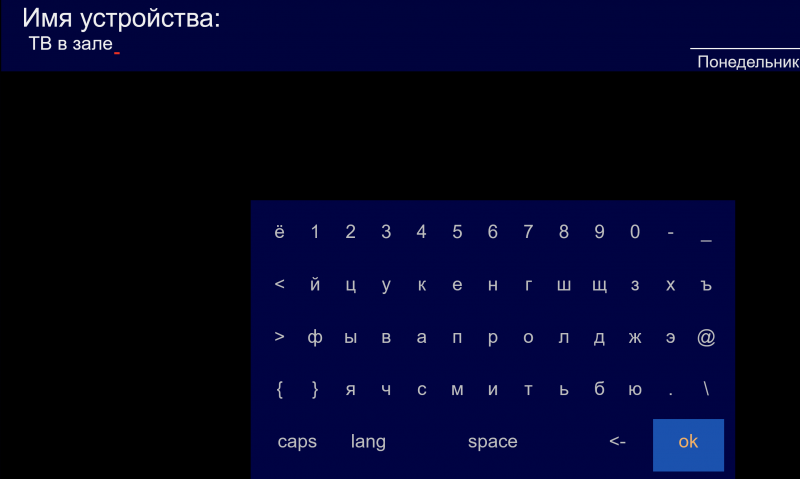
To save the data, click on the return arrow in the top right corner, after which you will be asked in the Registration/Device Selection field to select - new device and enter its name, for example - TV in the living room.
After authorizing in the application on your TV, return to the ottplayer.tv account
Log in to your account on the ott-player website and specify the link to your playlist from the email or billing (HLS playlist). You can see how to do this at the following link https://ottplayer.tv/support
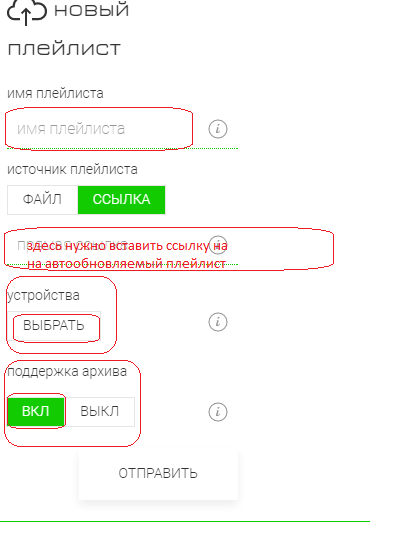
Enter "ArmIPTV" in the "playlist name" field
Copy the "direct link" address to the playlist, which you received in the email, WhatsApp or Telegram after placing the order.
After that, click on the "Select" button and choose the newly added device (TV in the living room).
After we have created the playlist in the OTT player account and allowed access to it from our TV, go back to the application settings on the TV itself.
Launch the OTT player application on your television. If you have done everything correctly before, you will see the name of your playlist - ArmIPTV next to "Favorites" at the bottom.
Go to it and you will see a list of all categories and channels.
Setting up viewing through the OTTPlayer application
Official application website: ottplayer.tv
Register on the official OTT Player website.
Install the OTTPlayer application with a purple icon on your TV via the LG applications manager
(LG Smart World or LG Content Store).

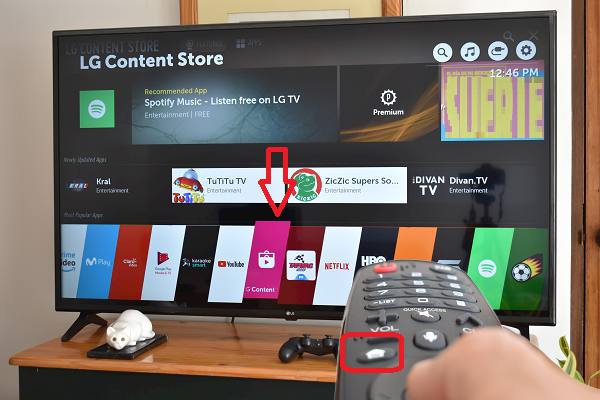
Launch the application and enter the registration details from your ottplayer.tv account
To save the data, click on the return arrow in the top right corner, after which you will be asked in the Registration/Device Selection field to select - new device and enter its name, for example - TV in the living room.
After authorizing in the application on your TV, return to the ottplayer.tv account
Log in to your account on the ott-player website and specify the link to your playlist from the email or billing (HLS playlist). You can see how to do this at the following link https://ottplayer.tv/support
Enter "ArmIPTV" in the "playlist name" field
Copy the "direct link" address to the playlist, which you received in the email, WhatsApp or Telegram after placing the order.
After that, click on the "Select" button and choose the newly added device (TV in the living room).
After we have created the playlist in the OTT player account and allowed access to it from our TV, go back to the application settings on the TV itself.
Launch the OTT player application on your television. If you have done everything correctly before, you will see the name of your playlist - ArmIPTV next to "Favorites" at the bottom.
Go to it and you will see a list of all categories and channels.
Setting up Televizo player for Android devices
To watch TV channels, you need to install the Televizo app on your device.
The app is available from the Google Play Store.

After installation, launch it, and the following page will open:
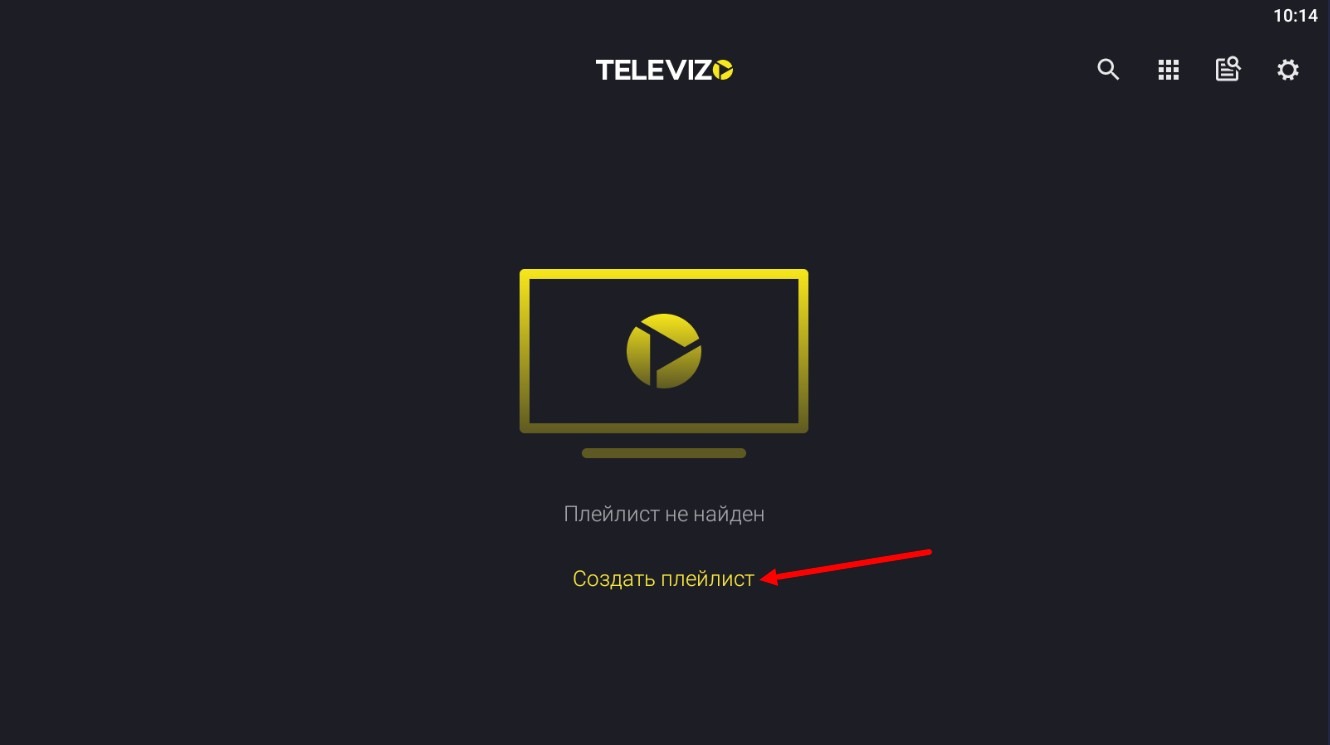
In this page, click on "Create playlist". A warning window will open:
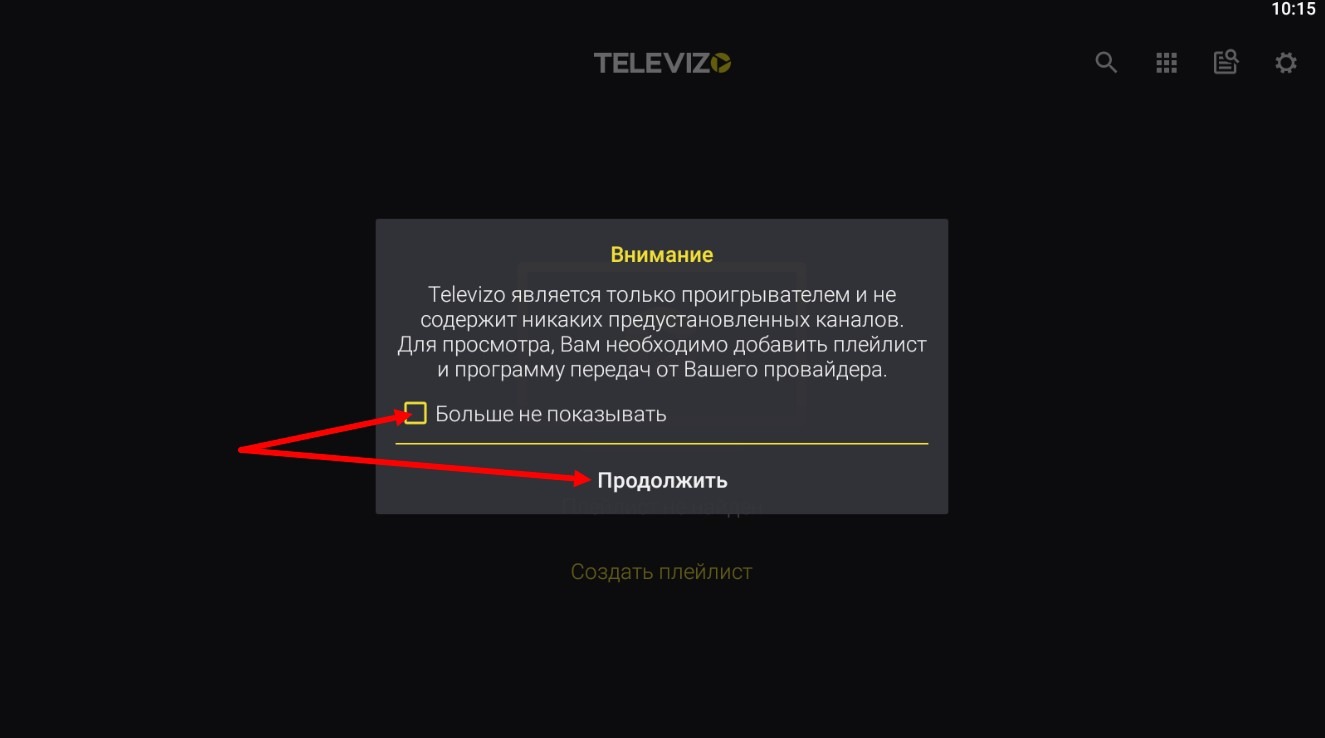
Check the box "Do not show again" and click "Continue". The next settings window will open:
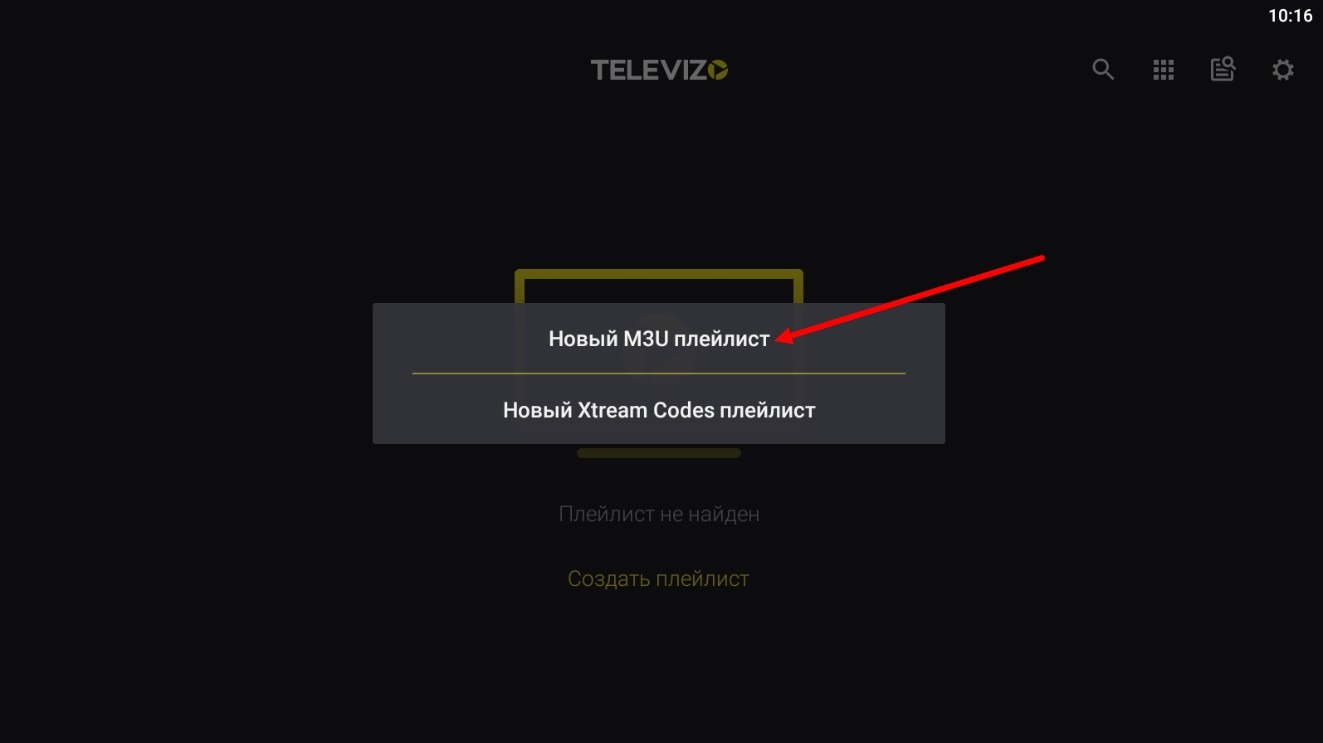
Click on "New M3U playlist". The next settings window for entering playlist data will open:
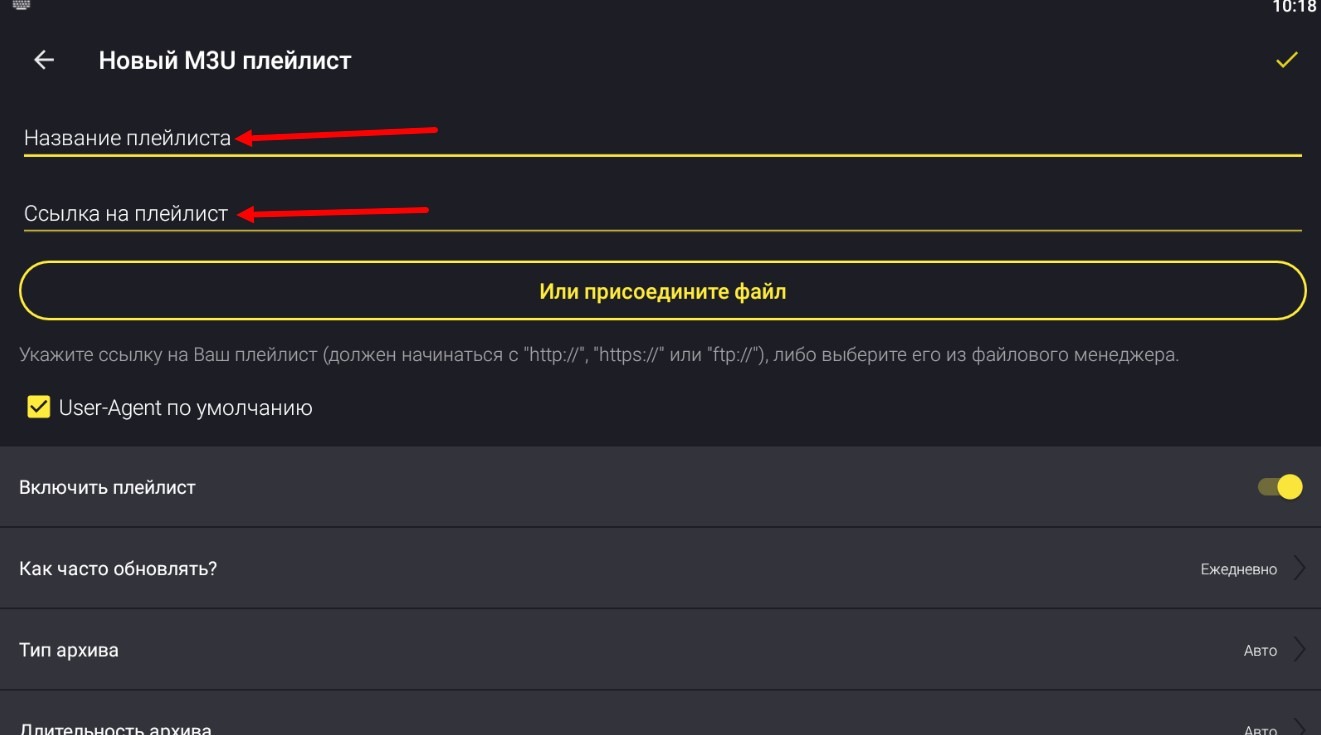
Title field: ArmIPTV
Playlist link: Copy the playlist link address, which you received in the email, WhatsApp or Telegram after placing the order.
After entering the data, click the checkmark at the top right. Go back, and the channels will appear.
Comming soon ...
Comming soon ...
Comming soon ...
Comming soon ...